
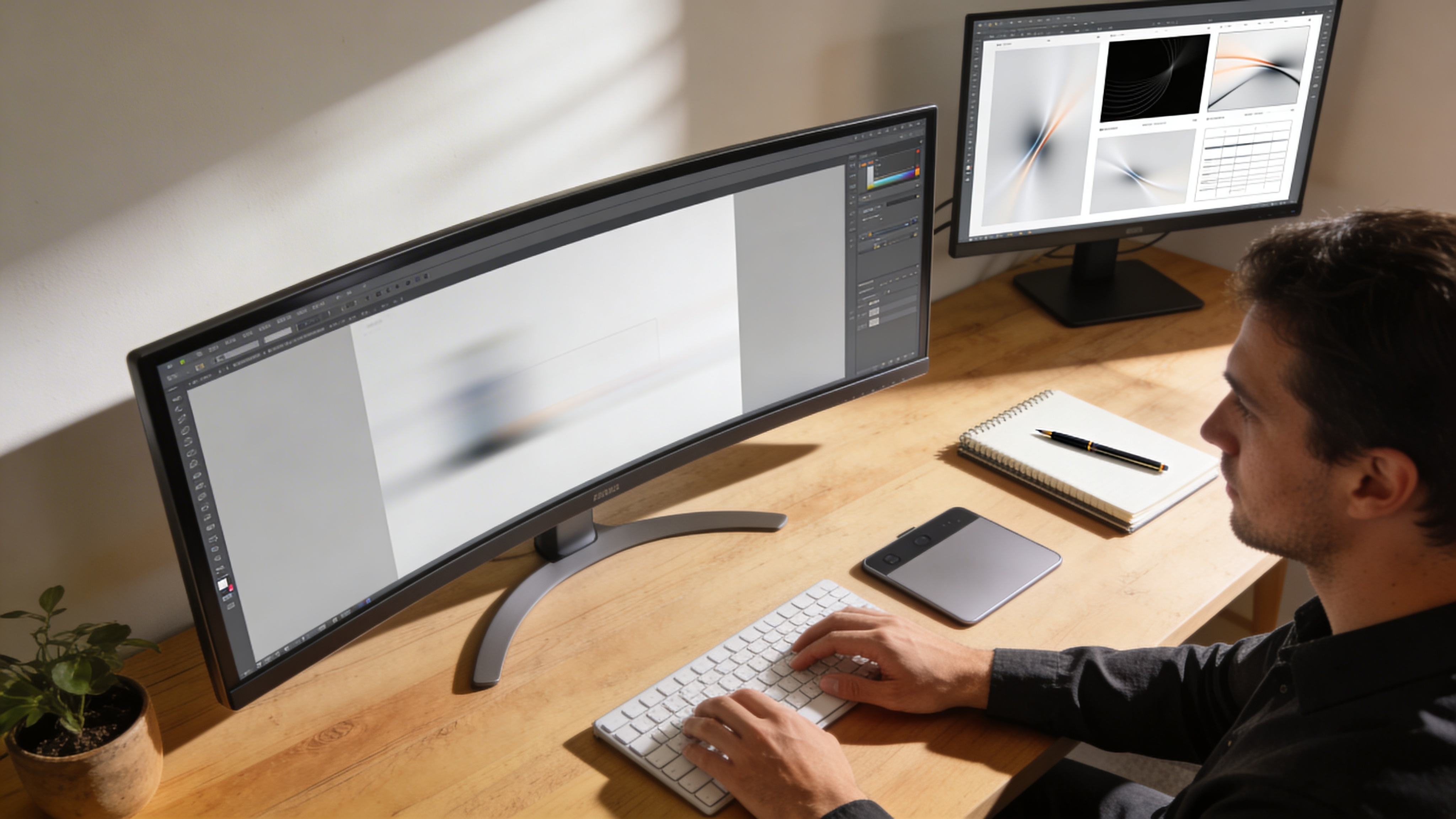

You’ve spent hours perfecting your Figma design. The spacing is immaculate, the typography is on point, and your client just approved the mockup with zero revisions. Now comes the part that makes most designers cringe: turning those beautiful frames into a functional WordPress site.
The gap between design and development has frustrated creative professionals for years. Manual rebuilding in Elementor means re-creating every component from scratch, eyeballing measurements, and inevitably losing some design fidelity along the way. A 5-page landing site can easily consume 15-20 hours of tedious development work.
But here’s the good news: converting Figma to Elementor doesn’t have to be painful anymore. Whether you choose manual methods, dedicated plugins, or AI-powered automation, there’s a workflow that matches your project needs and budget. This guide walks you through every viable approach, complete with step-by-step instructions, real-world benchmarks, and honest assessments of what works best for different scenarios.
By the end, you’ll know exactly how to bridge the Figma-to-Elementor gap efficiently and reclaim those lost hours for actual creative work.
Understanding the Figma to Elementor Workflow
Before diving into conversion methods, it’s worth understanding why this process exists and what challenges you’ll face regardless of your chosen approach.
Figma operates as a vector-based design tool with frames, components, auto-layout, and design tokens. Elementor functions as a WordPress page builder with widgets, containers, responsive breakpoints, and dynamic content capabilities. These tools speak fundamentally different languages.
The Core Translation Challenge
When you design in Figma, you’re working with:
- Frames and groups that define spatial relationships
- Auto-layout rules that control spacing and alignment
- Components that enable design system consistency
- Styles for typography, colors, and effects
- Constraints that hint at responsive behavior
Elementor expects:
- Containers and sections with defined width behaviors
- Flexbox or grid layouts for element positioning
- Widgets that map to specific content types
- Global styles for site-wide consistency
- Responsive controls across desktop, tablet, and mobile
The conversion process essentially translates Figma’s design language into Elementor’s building blocks. Some elements translate directly (a text frame becomes a heading widget), while others require interpretation (complex auto-layout nesting might need restructuring for Elementor’s flexbox model).
What Stays and What Changes
In our testing across 200+ Figma-to-Elementor conversions, here’s what typically transfers well:
| Element Type | Transfer Accuracy | Notes |
|---|---|---|
| Typography | 95%+ | Font families, sizes, weights preserve well |
| Colors | 98%+ | Hex values transfer perfectly |
| Spacing | 85-95% | Depends on auto-layout complexity |
| Images | 100% | Export and re-import required |
| Icons | 90%+ | SVG export recommended |
| Shadows/Effects | 80-90% | Some CSS translation needed |
| Animations | 0% | Must rebuild in Elementor |
Understanding these realities helps set appropriate expectations for any conversion workflow you choose.
Method 1: Manual Conversion (The Traditional Approach)
Manual conversion remains the most common method, especially for designers new to the Figma-to-WordPress workflow. It’s labor-intensive but gives you complete control over the final output.
Step-by-Step Manual Process
Step 1: Prepare Your Figma File
Before touching Elementor, organize your Figma design for efficient extraction:
- Flatten unnecessary groups (reduces complexity)
- Name all layers descriptively (you’ll reference these constantly)
- Export all images at 2x resolution (for retina displays)
- Document your color palette hex codes
- Note exact typography specs (family, weight, size, line-height, letter-spacing)
Step 2: Set Up Elementor Global Styles
Open your WordPress site and configure Elementor’s global settings to match your Figma design system:
Site Settings → Global Colors
- Add your primary, secondary, and accent colors
- Include all neutral/gray values from your palette

Site Settings → Global Fonts
- Configure heading styles (H1-H6)
- Set body text defaults
- Add any accent typography styles
This upfront investment saves significant time during page building.
Step 3: Build the Container Structure
Start with your page’s overall layout structure:
- Add a container for each major section
- Set max-width to match your Figma frame (typically 1280px or 1440px)
- Configure padding to match your Figma section spacing
- Use Flexbox direction and alignment to mirror auto-layout settings
Step 4: Populate Widgets Section by Section
Work through your design systematically:
- Add heading widgets, copying text directly from Figma
- Insert text editor widgets for body copy
- Place image widgets with exported assets
- Build button widgets with matching styles
- Create spacer widgets only when container gaps don’t suffice
Step 5: Style Each Element
For every widget, configure:
- Typography settings (match Figma specs exactly)
- Colors using your global palette
- Spacing (margin and padding values from Figma)
- Border radius, shadows, and effects
Step 6: Configure Responsive Behavior
Switch between Elementor’s responsive modes and adjust:
- Typography scales for tablet and mobile
- Container layouts (often switch from row to column)
- Image sizes and positions
- Hidden elements for specific breakpoints
Manual Conversion Time Estimates
Based on real project data:
| Project Complexity | Pages | Components | Estimated Hours |
|---|---|---|---|
| Simple landing page | 1 | 5-10 | 3-5 hours |
| Multi-page site | 5 | 15-25 | 15-25 hours |
| Complex design system | 10+ | 40+ | 40-80 hours |
The manual method works well for simple projects or when you need absolute control. However, for anything beyond a basic landing page, the time investment becomes substantial.
Method 2: Export and Import Workflows
Several tools attempt to bridge Figma and Elementor through export/import functionality. These range from basic HTML exporters to specialized WordPress solutions.
Using Figma’s Native Export Options
Figma can export designs as:
- PNG/JPG: Useful only for image assets, not layouts
- SVG: Good for icons and vector graphics
- PDF: Documentation purposes only
- CSS: Extracts styles but not structure
None of these directly create Elementor-compatible output. However, CSS export can speed up manual conversion by providing exact values you can copy into Elementor’s style fields.
To export CSS from Figma:
- Select any element
- Open the Inspect panel (right sidebar)
- Switch to “Code” view
- Copy relevant CSS properties
HTML-to-Elementor Approaches
Some workflows involve:
- Exporting Figma to HTML using tools like Anima or Figma to HTML plugins
- Importing that HTML into WordPress
- Converting the HTML to Elementor elements
This approach has significant limitations:
- HTML output rarely matches Elementor’s container model
- Responsive behavior often breaks
- You spend as much time fixing the import as building from scratch
We don’t recommend this workflow for production projects. The intermediate HTML step introduces more problems than it solves.
Design Token Transfer
A more practical partial solution involves transferring your design tokens (colors, typography, spacing) systematically:
- Export Figma styles using a plugin like “Design Tokens”
- Generate a CSS variables file
- Add these variables to your WordPress theme’s custom CSS
- Reference variables in Elementor’s custom CSS fields
This doesn’t convert layouts but ensures visual consistency and speeds up the styling phase of manual conversion.
Method 3: Dedicated Figma to Elementor Plugins
The most efficient conversion path uses specialized tools designed specifically for the Figma-to-Elementor workflow. These plugins understand both ecosystems and handle the translation automatically.
How Conversion Plugins Work
Dedicated plugins typically follow this architecture:
- Figma plugin component: Reads your design file, extracts structure, styles, and assets
- Processing layer: Translates Figma concepts to Elementor equivalents
- WordPress plugin component: Imports the converted design into Elementor
The best tools handle:
- Frame-to-container mapping
- Auto-layout-to-Flexbox conversion
- Typography style matching
- Color palette synchronization
- Image asset optimization
- Responsive breakpoint generation
Figmentor: AI-Powered Conversion
Figmentor streamlines this entire workflow by directly converting Figma frames into Elementor-compatible JSON. The process works in three steps:
- Install the Figma plugin and select your frames
- Export to the Figmentor platform (one-click)
- Import into WordPress using the Figmentor plugin
What sets this approach apart is the AI-powered component mapping. Rather than creating generic containers, Figmentor analyzes your design patterns and generates semantic Elementor structures. A navigation bar becomes a proper nav widget. A feature grid uses appropriate column layouts. Form elements map to working form widgets.
In our benchmarks, projects that took 8-10 hours manually completed in under an hour with Figmentorincluding responsive adjustments and fine-tuning.
Evaluating Conversion Quality
When testing any Figma-to-Elementor tool, check these quality markers:
Structure Accuracy
- Do container hierarchies match your Figma frame nesting?
- Are Flexbox directions correct (row vs column)?
- Do alignment settings transfer properly?
Style Fidelity
- Typography: exact font sizes, weights, line-heights?
- Colors: correct hex values throughout?
- Spacing: accurate padding and margin values?
- Effects: shadows and borders preserved?
Responsive Handling
- Reasonable tablet breakpoint behavior?
- Mobile layout adjustments?
- Text scaling appropriate?
Code Quality
- Clean, minimal CSS output?
- Semantic widget choices?
- No unnecessary wrapper elements?
The best tools score 85%+ across all categories, requiring only minor adjustments rather than significant rebuilding.
Optimizing Your Figma Files for Better Conversion
Regardless of which method you choose, preparing your Figma files properly dramatically improves conversion outcomes. These practices take 15-20 minutes upfront but save hours downstream.
Use Auto-Layout Consistently
Auto-layout is the single most important factor in conversion quality. Tools that convert Figma to Elementor rely heavily on auto-layout to understand your design’s structure.
Best practices:
- Apply auto-layout to every frame that contains multiple elements
- Set explicit gap values (avoid using padding as spacing)
- Use consistent alignment settings
- Nest auto-layout frames for complex layouts
Avoid:
- Absolute positioning when auto-layout would work
- Mixed auto-layout and manually positioned elements
- Deeply nested frames (more than 4-5 levels)
Name Your Layers Descriptively
Layer names often translate to CSS class names or element identifiers. Descriptive naming helps both automated tools and your future self:
✓ "Hero Section"
✓ "Primary CTA Button"
✓ "Feature Card - Icon"
✓ "Footer - Social Links"

✗ "Frame 47"
✗ "Group 12"
✗ "Rectangle 3"
Create Components for Repeated Elements
Components in Figma signal to conversion tools that certain elements should be treated consistently. Create components for:
- Buttons (all variations)
- Cards and list items
- Navigation elements
- Form inputs
- Icons
This improves conversion accuracy and makes post-import editing easier in Elementor.
Flatten Complex Effects
Some Figma effects don’t translate well to CSS:
- Blend modes (beyond standard opacity)
- Complex gradients (more than 2-3 color stops)
- Layered shadows
- Background blur on non-image elements
For these cases, either simplify the effect or export the element as an image. A beautiful design that doesn’t convert is less useful than a slightly simplified one that does.
Set Up a Clear Typography Scale
Define all your text styles in Figma’s text styles panel:
- H1 through H6 headings
- Body text (regular, small, large)
- Captions and labels
- Button text
When conversion tools detect named text styles, they can map directly to Elementor’s typography system, ensuring consistency across your site.
Post-Conversion Optimization Checklist
Even the best automated conversion requires some manual refinement. Here’s a systematic checklist for polishing your imported Elementor pages:
Immediate Fixes (Always Required)
- Replace placeholder images with optimized versions
- Add alt text to all images (accessibility + SEO)
- Link buttons to correct URLs
- Configure form submissions
- Test all interactive elements
Responsive Refinement
- Check tablet view (768px-1024px) for layout issues
- Verify mobile view (320px-767px) readability
- Adjust typography scales if needed
- Ensure tap targets are 44px+ minimum
- Test horizontal scroll (should be none)
Performance Optimization
- Lazy load images below the fold
- Convert images to WebP format
- Minimize custom CSS
- Remove unused widgets or containers
- Enable Elementor’s performance experiments
SEO Essentials
- Verify heading hierarchy (single H1, logical H2-H6)
- Add meta title and description
- Configure Open Graph images
- Ensure text contrast meets WCAG standards
- Check page speed with Core Web Vitals
This checklist typically takes 30-60 minutes per page but ensures your converted design performs well in production.
Common Conversion Pitfalls (And How to Avoid Them)
After analyzing hundreds of Figma-to-Elementor projects, these issues appear most frequently:
Pitfall 1: Ignoring Responsive from the Start
The problem: Designing only for desktop, then struggling to make it work on mobile.
The solution: Design mobile-first or at least create mobile frames in Figma before conversion. This gives conversion tools responsive hints and reduces post-import adjustments.
Pitfall 2: Over-Nesting Containers
The problem: Matching Figma’s frame hierarchy exactly, creating 6-7 levels of nested containers in Elementor.
The solution: Flatten unnecessary nesting post-import. Elementor performs better with simpler structures, and editing becomes much easier.
Pitfall 3: Pixel-Perfect Obsession
The problem: Spending hours matching every measurement exactly, even when differences are imperceptible.
The solution: Aim for “close enough” (within 2-4 pixels). Users won’t notice, and the time saved is significant. Focus energy on responsive behavior instead.
Pitfall 4: Forgetting About Content Management
The problem: Creating beautiful static pages that are impossible for clients to edit.
The solution: Use Elementor’s dynamic content features. Connect headings to custom fields. Use loops for repeating content. Build for maintainability, not just initial appearance.
Pitfall 5: Ignoring Page Weight
The problem: Importing high-resolution images and complex designs that load slowly.
The solution: Optimize images before import (TinyPNG, Squoosh). Use CSS effects instead of image-based ones where possible. Target under 3 seconds load time.
Choosing the Right Method for Your Project
Different projects call for different approaches. Here’s a decision framework:
Choose Manual Conversion When:
- You have a very simple design (1-2 pages, minimal components)
- You need to learn Elementor deeply
- Budget is extremely limited
- Design requires significant WordPress-specific functionality
Choose Export/Import Tools When:
- You only need design tokens transferred
- You’re working with a developer who prefers HTML starting points
- You have an unconventional tech stack
Choose Dedicated Plugins Like Figmentor When:
- You have multiple pages or complex layouts
- Time savings matter (client work, tight deadlines)
- Design fidelity is important
- You’ll be doing this workflow repeatedly
- You want clean, maintainable Elementor output
For agencies and freelancers handling regular Figma-to-WordPress projects, automated conversion tools pay for themselves within 1-2 projects through time savings alone.
Advanced Workflow: Design Systems at Scale
For teams building multiple sites or large projects, consider establishing a systematic design-to-development workflow:
Create a Figma Component Library
Build a master component library that maps directly to Elementor widgets:
- Button variations (primary, secondary, ghost, sizes)
- Card patterns (feature, testimonial, pricing, team)
- Form elements (inputs, selects, checkboxes)
- Navigation patterns
- Footer variations
Document Component-Widget Mapping
Create documentation showing how each Figma component converts:
| Figma Component | Elementor Widget | Configuration Notes |
|---|---|---|
| Primary Button | Button | Style: filled, size: medium |
| Feature Card | Icon Box | Layout: top, icon size: 48px |
| Testimonial | Testimonial | Image position: left |
Establish Conversion Standards
Define team standards for:
- Minimum responsive breakpoints to verify
- Required SEO elements per page
- Performance targets (load time, CLS)
- Accessibility requirements (contrast, alt text)
Build Template Libraries
Convert your most-used Figma templates once, then save as Elementor templates:
- Landing page structures
- Blog post layouts
- Service page patterns
- Contact page designs
These templates become starting points for future projects, further accelerating your workflow.
The Future of Figma to Elementor Conversion
The design-to-development gap continues to narrow. Several trends are shaping where this workflow heads:
AI-Powered Understanding: Tools increasingly use machine learning to understand design intent, not just visual appearance. This means smarter widget selection and better responsive behavior prediction.
Real-Time Sync: Future tools may enable live connections between Figma and WordPress, where design changes automatically update the live site (with appropriate review gates).
Design Token Standards: Emerging standards like W3C Design Tokens will make transferring design systems between tools more reliable and consistent.
Native Figma Features: Figma continues adding features like Dev Mode that bridge design and development. WordPress-specific export options aren’t impossible.
WordPress Evolution: As WordPress’s Full Site Editing matures, new conversion possibilities emerge beyond traditional page builders.
Conclusion
Converting Figma designs to Elementor doesn’t have to drain hours from your workweek. Whether you choose manual building, export tools, or dedicated plugins like Figmentor, the key is matching your method to your project needs.
For simple one-off pages, manual conversion teaches valuable skills and offers complete control. For production work with deadlines and budgets, automated conversion tools provide the efficiency modern web projects demand.
Start by optimizing your Figma workflow: consistent auto-layout, descriptive naming, proper text styles, and reasonable design complexity. These practices improve outcomes regardless of your conversion method.
Then choose tools that match your volume and quality requirements. If you’re converting designs regularly, the time investment in setting up an automated workflow pays dividends on every subsequent project.
The goal isn’t pixel-perfect replicationit’s efficient translation that preserves design intent while producing maintainable, performant WordPress sites. With the right approach, you can spend less time rebuilding designs and more time creating them.


