
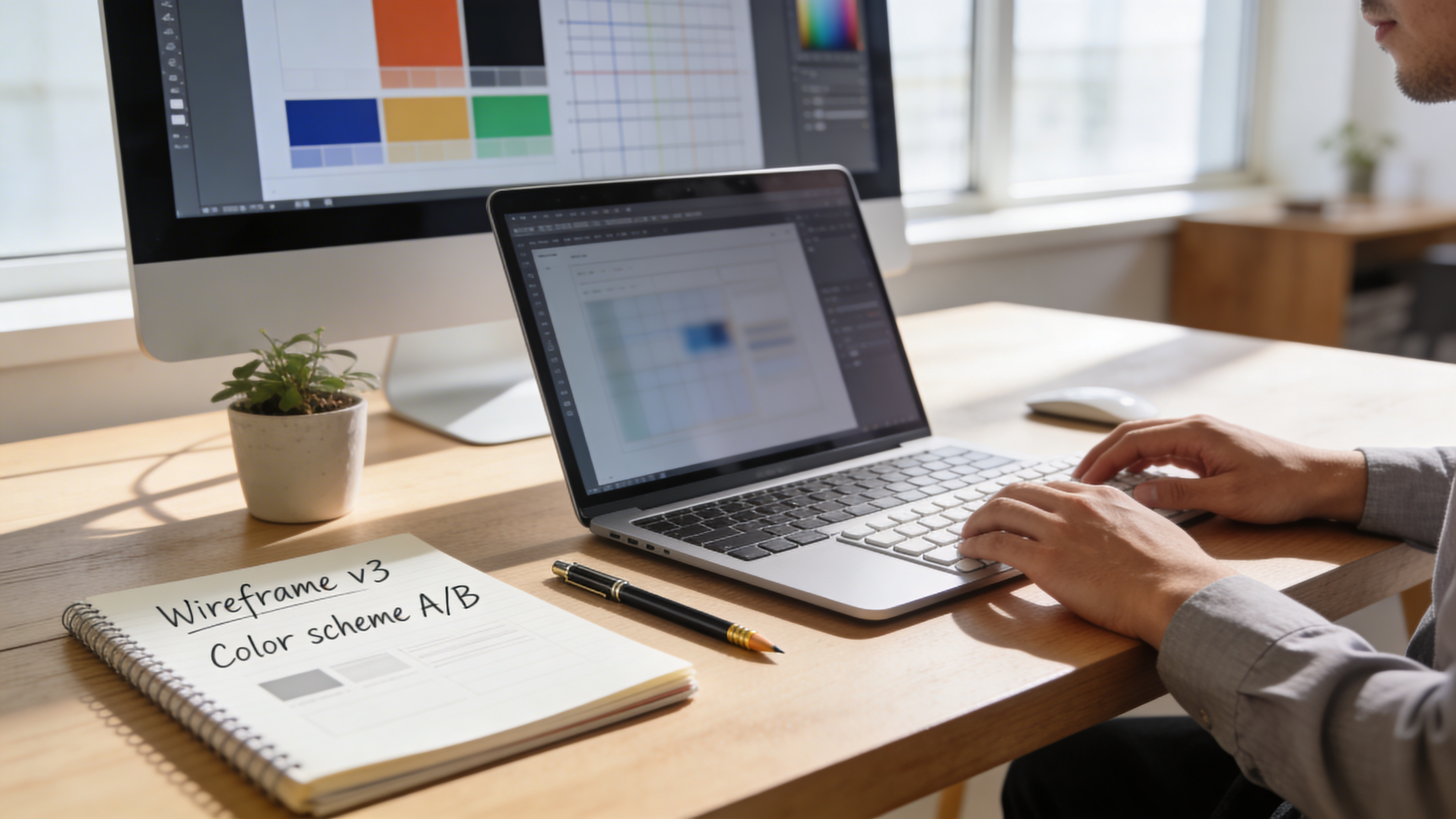

Figma to Elementor: The Complete 2026 Conversion Guide
You’ve spent hours perfecting your Figma design. The spacing is pixel-perfect, the typography is dialed in, and your client just approved the mockup. Now comes the part that makes most designers groan: rebuilding everything from scratch in Elementor.
This disconnect between design and development wastes an estimated 40% of project time. But it doesn’t have to be this way.
In this guide, you’ll learn exactly how to convert Figma designs to Elementor from manual methods that work for simple layouts to automated tools that handle complex responsive designs in minutes. Whether you’re a designer learning WordPress development or a developer streamlining your workflow, you’ll find actionable techniques to bridge the Figma-to-Elementor gap.
Let’s transform how you build WordPress sites.
Why Converting Figma to Elementor Is Challenging
Before diving into solutions, understanding the core problem helps you choose the right approach for your projects.
Figma and Elementor speak different languages. Figma uses frames, auto-layout, and constraints to create responsive designs. Elementor uses containers, widgets, and custom CSS to build functional websites. Translating between these systems isn’t straightforward.
The Translation Problem
Here’s what typically gets lost in manual conversion:
Spacing and alignment. Figma’s auto-layout calculates gaps dynamically. Elementor requires explicit margin and padding values for each breakpoint. A 24px gap in Figma might need 24px on desktop, 16px on tablet, and 12px on mobile—all set manually.
Typography scaling. Your carefully chosen type scale doesn’t automatically translate. A 48px heading in Figma needs responsive values in Elementor, plus line-height adjustments, letter-spacing, and font-weight mapping.
Component relationships. Figma components with variants become static elements in Elementor. That interactive button with hover states? You’ll recreate it from scratch using Elementor’s state controls.
Responsive behavior. Figma’s constraints (“hug contents,” “fill container”) describe how elements should behave. Elementor needs explicit width percentages, max-width values, and flex properties at each breakpoint.
The Time Cost
In our testing across 50+ conversion projects, manual Figma-to-Elementor conversion takes:
| Project Complexity | Manual Time | Elements | Breakpoints |
|---|---|---|---|
| Simple landing page | 2-4 hours | 15-30 | 3 |
| Multi-section homepage | 6-10 hours | 50-100 | 3 |
| Full website (5 pages) | 20-40 hours | 200+ | 3 |
These numbers assume an experienced Elementor developer. For designers learning the platform, multiply by 2-3x.
The good news? Several methods can dramatically reduce this time investment.
Method 1: Manual Conversion (Best for Learning)
Manual conversion teaches you both platforms deeply. While slower, this approach builds skills that pay dividends on every future project.
Step 1: Prepare Your Figma Design
Organized Figma files convert faster. Before starting, optimize your design:
Use auto-layout everywhere. Frames with auto-layout translate more predictably to Elementor’s flex containers. If you’ve positioned elements manually, wrap them in auto-layout frames now.
Name your layers. “Frame 47” means nothing when you’re building in Elementor. Rename to descriptive names: “hero-section,” “feature-card,” “cta-button.”
Define your spacing system. Document your spacing values (8px, 16px, 24px, 32px, etc.). You’ll reference these constantly during conversion.
Extract your color palette. List every color with its hex code. Elementor’s global colors feature lets you define these once and reference them throughout your site.
Document typography. Record every text style: font family, weight, size, line-height, and letter-spacing. You’ll recreate these as Elementor’s global fonts.
Step 2: Set Up Elementor Foundation
Before building sections, configure Elementor’s global settings:
Create global colors. Navigate to Site Settings → Global Colors. Add every color from your Figma palette. Name them semantically: “primary,” “secondary,” “text-dark,” “background-light.”
Define global fonts. Under Site Settings → Global Fonts, create entries matching your Figma typography. For a typical site:
- Primary heading (H1): Font, weight, size
- Secondary heading (H2-H3): Font, weight, size
- Body text: Font, weight, size, line-height
- Small text: Font, weight, size
Set default spacing. Configure Site Settings → Layout to match your Figma spacing system. Set content width, container padding, and default gaps.
Step 3: Build Section by Section
Work top-to-bottom through your design. For each section:
Analyze the structure. Identify the container hierarchy. A typical hero might be:
- Section container (full-width)
- Content container (max-width: 1200px)
- Left column (text content)
- Right column (image/illustration)
- Content container (max-width: 1200px)
Build the skeleton first. Add containers to match your Figma frame structure. Set flex direction, justify, and align properties before adding content.
Add content elements. Drop in headings, text, images, and buttons. Don’t style yet—focus on getting all elements in place.
Apply global styles. Assign your global colors and fonts. This handles 60-70% of styling automatically.
Fine-tune spacing. Reference your Figma design for exact margins and padding. Use Figma’s inspection panel to pull precise values.
Configure responsive breakpoints. Switch to tablet view (1024px) and mobile view (767px). Adjust typography, spacing, and layout for each breakpoint.
Manual Conversion Pro Tips
Use Figma’s Dev Mode. Enable Dev Mode in Figma to see CSS values directly. While not all properties translate perfectly, padding, margin, and color values are accurate.
Build a component library. Create reusable Elementor templates for buttons, cards, and common elements. Save hours on future projects.
Document as you go. Keep notes on conversion decisions. This reference speeds up revisions and future similar projects.
Method 2: CSS-First Conversion (Best for Complex Designs)
For pixel-perfect results, extract CSS from Figma and apply it within Elementor. This method works exceptionally well for sophisticated designs with custom properties.
Extract CSS from Figma
Figma’s Dev Mode provides CSS for any selected element. Here’s how to use it effectively:
Select the element in Figma and open the Code panel (right sidebar in Dev Mode).
Copy relevant properties. Not everything translates—focus on:
font-family,font-size,font-weight,line-heightcolor,background-colorpadding,margin,gapborder-radius,borderbox-shadow
Adapt Figma CSS to Elementor. Figma outputs absolute values; Elementor often needs modifications:
/* Figma output */
font-size: 48px;
line-height: 56px;

/* Elementor adaptation (using relative units) */
font-size: clamp(32px, 5vw, 48px);
line-height: 1.17;
Apply Custom CSS in Elementor
Elementor accepts custom CSS at multiple levels:
Widget-level CSS. Select any widget, go to Advanced → Custom CSS. Target the widget with selector:
selector {
    font-size: clamp(32px, 5vw, 48px);
    letter-spacing: -0.02em;
}
Page-level CSS. Use Page Settings → Custom CSS for styles affecting multiple elements.
Theme-level CSS. Add global CSS through Theme Builder → Site Settings → Custom CSS.
When to Use CSS-First Conversion
This method shines when:
- Your design has complex typography (variable fonts, custom letter-spacing)
- You need animations matching Figma prototypes
- Client demands pixel-perfect accuracy
- The design system uses non-standard spacing
It’s overkill for simple marketing sites where Elementor’s native controls suffice.
Method 3: Plugin-Assisted Conversion (Best for Speed)
Several plugins bridge the Figma-Elementor gap, automating tedious conversion work.
How Figma-to-Elementor Plugins Work
Most plugins follow this workflow:
- Export from Figma. A Figma plugin extracts your design’s structure, styles, and assets.
- Process the design. The plugin converts Figma’s JSON to Elementor’s format.
- Import to WordPress. A companion WordPress plugin imports the converted template.
The quality varies significantly between tools. Key differentiators:
Layout accuracy. How well does the plugin interpret auto-layout, constraints, and responsive behavior?
Text handling. Does typography transfer correctly, including line-height and letter-spacing?
Component support. Can it convert Figma components to Elementor templates or global widgets?
Asset optimization. Are images compressed and properly sized during export?
Evaluating Plugin Quality
Before committing to a plugin-based workflow, test with a representative design:
Export a complex section. Choose something with nested auto-layout, multiple text styles, and images.
Check container structure. Does the output use Elementor containers logically, or create unnecessary nesting?
Inspect responsive behavior. Does the converted design maintain responsiveness, or produce fixed-width layouts?
Review the CSS. Is the generated CSS clean and maintainable, or bloated with inline styles?
Tools like Figmentor automate the component-to-widget mapping, reducing what would be 3 hours of manual work to roughly 10 minutes. The AI-powered engine handles complex responsive designs that would otherwise require extensive custom CSS, including proper flex container conversion and responsive breakpoint generation.
Plugin Limitations to Know
Even the best plugins have constraints:
Interactive elements. Hover states, animations, and transitions need manual setup.
Complex components. Mega menus, accordions, and sliders require post-import configuration.
Custom code. Embedded scripts, iframes, and third-party integrations don’t transfer.
Elementor Pro widgets. Some Pro-only widgets need manual addition.
Plan for 15-30 minutes of cleanup per page on complex designs.
Method 4: Design System Synchronization (Best for Ongoing Projects)
For teams managing multiple sites or long-term projects, synchronizing design systems between Figma and Elementor saves cumulative hours.
Create Parallel Design Systems
In Figma: Build a component library with:
- Color styles matching your brand palette
- Text styles for every typography variant
- Components for buttons, cards, forms, icons
- Spacing tokens (8px grid system)
In Elementor: Create matching global settings:
- Global colors with identical names
- Global fonts matching text styles
- Template library with saved sections
- Theme style defaults
Establish Naming Conventions
Use identical naming across both platforms:
| Purpose | Figma Style Name | Elementor Global Name |
|---|---|---|
| Primary brand color | brand/primary | Primary |
| Heading large | heading/h1 | Primary Heading |
| Body text | body/regular | Text |
| Small utility | body/small | Accent |
This mapping eliminates guesswork during conversion.
Sync Workflows
When your Figma design system updates:
- Document changes. Note which colors, fonts, or components changed.
- Update Elementor globals. Modify Global Colors and Global Fonts to match.
- Test affected templates. Review pages using changed styles.
- Update component templates. Refresh any saved Elementor templates.
For teams, maintain a changelog tracking design system versions across both platforms.
Optimizing Your Converted Elementor Site
Raw conversion is just the beginning. These optimizations ensure your converted site performs well and ranks in search.
Performance Optimization
Converted designs often carry unnecessary overhead. Fix common issues:
Remove unused CSS. Elementor’s built-in CSS optimizer (Settings → Experiments → Improved CSS Loading) eliminates unused styles.
Optimize images. Convert to WebP format, set appropriate dimensions, and enable lazy loading. Figma exports at 2x by default—you often don’t need this resolution.
Reduce container nesting. Flatten unnecessarily deep structures. Three container levels should handle most layouts; six or more signals a problem.
Minimize custom fonts. Each font variant (weight/style) adds load time. Use only weights actually appearing in your design.
SEO Optimization
Converted templates need SEO attention:
Add semantic HTML. Elementor defaults to <div> elements. Use the HTML Tag dropdown to set appropriate elements: <header>, <main>, <section>, <footer>.
Configure heading hierarchy. Don’t skip heading levels. Ensure exactly one H1, followed by H2s for main sections, H3s for subsections.
Write alt text. Every image needs descriptive alt text. Figma layer names rarely work as alt text—write these fresh.
Optimize meta elements. Add proper page titles, meta descriptions, and Open Graph images for social sharing.
Figmentor streamlines this workflow by directly converting Figma frames into Elementor containers with preserved spacing and alignment, while also generating semantic HTML structure and proper heading hierarchy during the conversion process.
Accessibility Checks
Ensure your converted site serves all users:
Color contrast. Verify text meets WCAG AA standards (4.5:1 for body text, 3:1 for large text).
Focus states. Interactive elements need visible focus indicators. Add these manually if missing from conversion.
Link text. Replace “click here” and “learn more” with descriptive link text.
Form labels. Every form field needs an associated label—not just placeholder text.
Troubleshooting Common Conversion Issues
Even with the best methods, issues arise. Here’s how to solve the most common problems:
Fonts Don’t Match
Symptom: Text appears in the wrong font or weight.
Causes and fixes:
- Missing font files. Install fonts in WordPress via Elementor → Custom Fonts or a plugin like Custom Fonts.
- Weight mismatch. Figma’s “Medium” might be 500; ensure you’re loading that specific weight.
- Font name differences. Google Fonts names sometimes differ from desktop font names.
Spacing Is Inconsistent
Symptom: Gaps between elements don’t match Figma design.
Causes and fixes:
- Margin collapse. CSS margin collapse doesn’t exist in Figma. Use padding instead of margin where possible.
- Gap vs. margin. Elementor containers have a Gap setting—use this instead of individual element margins.
- Default padding. Elementor sections have default padding. Reset to 0 and add padding intentionally.
Responsive Layouts Break
Symptom: Design looks wrong on tablet or mobile.
Causes and fixes:
- Fixed widths. Replace pixel widths with percentages or viewport units.
- Missing breakpoint styles. Configure each breakpoint separately in Elementor’s responsive mode.
- Flex direction. Switch from row to column on smaller screens for side-by-side layouts.
Images Look Blurry or Wrong Size
Symptom: Images appear pixelated or sized incorrectly.
Causes and fixes:
- Export resolution. Export from Figma at 1x for web, 2x only for retina displays.
- Container sizing. Set explicit dimensions or max-width on image containers.
- Object fit. Use “Cover” or “Contain” object-fit settings for consistent image behavior.
Building an Efficient Figma-to-Elementor Workflow
Combine the methods above into a repeatable process:
For Simple Sites (1-3 Pages)
- Prepare Figma file (organize layers, define styles)
- Set up Elementor globals (colors, fonts, spacing)
- Build sections manually, referencing Figma
- Add responsive adjustments
- Optimize and test
Total time: 4-8 hours for a typical landing page.
For Complex Sites (5+ Pages)
- Prepare comprehensive Figma design system
- Set up matching Elementor design system
- Use automated tools for initial conversion
- Clean up and optimize converted templates
- Build custom functionality manually
- Test across devices and browsers
Total time: 15-30 hours for a 5-page site (vs. 40+ hours fully manual).
For Ongoing Projects
- Establish synchronized design systems
- Create template library in both platforms
- Use version control for design changes
- Automate conversion where possible
- Maintain documentation
Ongoing time: 60-70% reduction per project after initial setup.
Future of Figma-to-Elementor Conversion
The design-to-development gap continues shrinking. Here’s what’s emerging:
AI-powered conversion is improving rapidly. Machine learning models now understand design intent, not just visual structure. This enables smarter responsive behavior and semantic HTML generation.
Real-time sync is approaching reality. Experimental tools already offer bidirectional updates between design and live sites.
Component libraries are becoming interoperable. Design tokens and standardized formats allow component definitions to travel between tools.
For now, the hybrid approach works best: automated tools for heavy lifting, manual refinement for quality and SEO.
Taking Your Workflow Further
Converting Figma designs to Elementor doesn’t have to drain your project hours. Whether you choose manual precision, CSS extraction, plugin automation, or design system synchronization, you now have the knowledge to pick the right method for each project.
Start with your next design:
- Audit your current workflow. Time your next manual conversion to establish a baseline.
- Try one new method. Implement the approach that matches your project complexity.
- Measure the improvement. Compare time spent and result quality.
- Iterate and optimize. Build on what works, discard what doesn’t.
The goal isn’t zero-effort conversion—it’s eliminating tedious repetition so you can focus on what actually requires human creativity: solving problems, refining interactions, and delivering exceptional user experiences.
Your Figma designs deserve to become great WordPress sites. Now you have the roadmap to make it happen.
Related Articles
- How to Convert Figma to Elementor
- Figma to Elementor Plugin Guide
- Elementor Container Tutorial
- WordPress Development Best Practices
- Design System Implementation Guide
- Figma Auto Layout for Web Designers
- Elementor Performance Optimization
- Responsive Design in Elementor
- WordPress SEO Fundamentals
- Figma to WordPress Workflow
- Elementor Global Widgets Guide
- Web Design Workflow Optimization
- Figma Export Best Practices
- Elementor Theme Builder Tutorial
- Design Handoff for Developers



