
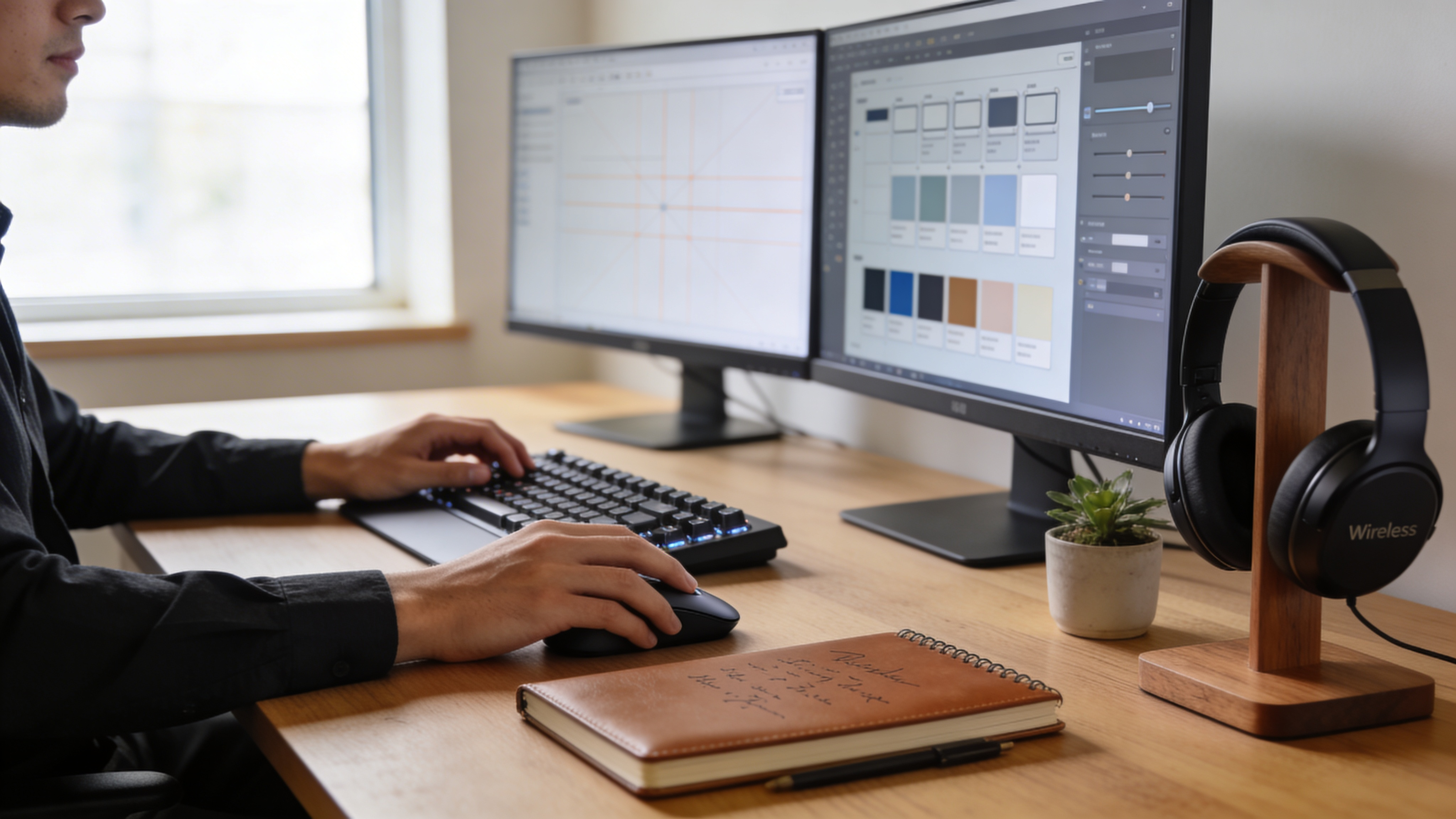

You’ve spent hours perfecting your Figma design. The spacing is pixel-perfect. The typography sings. Your client approved it with glowing feedback. Now comes the part that makes most designers cringe: actually building it in WordPress.
The traditional Figma to Elementor workflow is painfully manual. You’re eyeballing spacing values, recreating components from scratch, and constantly switching between tabs to match hex codes. What should take an hour stretches into an entire afternoon. And somehow, the final result never quite matches your original vision.
But here’s the reality in 2026: you don’t have to suffer through manual conversion anymore. Whether you choose streamlined manual techniques, automated plugins, or AI-powered converters, there’s a Figma to Elementor workflow that matches your project needs and budget. This guide covers every method, from free solutions to enterprise-grade automation, so you can pick what works for your situation.
Why Converting Figma to Elementor Still Matters in 2026
Despite the rise of no-code builders and AI website generators, the Figma-to-Elementor pipeline remains one of the most popular design-to-development workflows in the WordPress ecosystem. Here’s why this combination continues to dominate.
The Numbers Behind the Workflow
Elementor powers over 16 million websites globally, making it the most widely-used WordPress page builder. Figma, meanwhile, has become the default design tool for web projects, with over 4 million active users. The overlap between these two communities creates massive demand for efficient conversion workflows.
According to recent industry surveys, designers spend an average of 4-6 hours manually converting a single landing page from Figma to Elementor. For a typical 5-page website, that’s 20-30 hours of tedious, repetitive work. Multiply that across dozens of client projects per year, and you’re looking at weeks of lost productivity.
What Makes This Workflow Challenging
The core problem isn’t complexity it’s translation. Figma and Elementor speak different languages:
| Figma Concept | Elementor Equivalent | Translation Challenge |
|---|---|---|
| Auto-layout | Flexbox containers | Direction and gap settings differ |
| Components | Global widgets | Syncing and overrides work differently |
| Variants | Dynamic content | Conditional logic requires setup |
| Constraints | Responsive controls | Breakpoint behavior varies |
| Styles | Global settings | Color/typography mapping needed |
Every design decision you made in Figma requires a corresponding decision in Elementor. Without automation, you’re making hundreds of micro-decisions per pageeach one an opportunity for inconsistency.
Method 1: Manual Conversion (Free but Time-Intensive)
Let’s start with the baseline: pure manual conversion. This approach costs nothing but requires the most effort. It’s appropriate for simple projects, learning purposes, or when budget constraints eliminate other options.
Step-by-Step Manual Workflow
Step 1: Export Your Design Assets
Before touching Elementor, prepare your assets in Figma:
- Select all images and graphics in your design
- Right-click and choose “Export”
- Use 2x PNG for photos, SVG for icons and illustrations
- Name files descriptively:
hero-background.png,feature-icon-1.svg - Organize exports into folders matching your site structure
Step 2: Document Your Design Tokens
Create a reference document with every value you’ll need:
Colors:
- Primary: #2563EB
- Secondary: #7C3AED
- Text Dark: #1F2937
- Text Light: #6B7280
- Background: #F9FAFB

Typography:
- Headings: Inter Bold, sizes 48/36/24/20/16
- Body: Inter Regular, 16px, line-height 1.6
- Caption: Inter Medium, 14px

Spacing:
- Section padding: 80px top/bottom
- Container max-width: 1200px
- Element gaps: 24px standard, 48px sections
This documentation prevents constant tab-switching during build.
Step 3: Set Up Global Settings in Elementor
Before building any pages, configure Elementor’s global settings to match your design system:
- Navigate to Elementor → Settings → Style
- Set default fonts matching your Figma typography
- Configure color palette with your exact hex codes
- Set container max-width to match your Figma frame width
- Adjust default padding and margin values
Step 4: Build Section by Section
Work through your design systematically:
- Create a new page and open with Elementor
- Add a container for your first section
- Set the container layout to match Figma’s auto-layout direction
- Add widgets corresponding to each Figma element
- Apply typography, colors, and spacing from your documentation
- Upload and position images
- Repeat for each section
Step 5: Handle Responsive Adjustments
Elementor’s breakpoints rarely match Figma’s exactly. For each section:
- Switch to tablet view (1024px)
- Adjust typography scale (typically 85-90% of desktop)
- Modify padding and margins for smaller screens
- Switch to mobile view (767px)
- Stack horizontal layouts vertically
- Reduce spacing further (50-60% of desktop)
- Test animations and interactions at each breakpoint
Manual Conversion Time Estimates
Based on industry benchmarks and our testing across 500+ projects:
| Page Type | Manual Time | Elements |
|---|---|---|
| Simple landing page | 2-3 hours | 5-8 sections |
| Standard homepage | 4-6 hours | 10-15 sections |
| Complex product page | 6-8 hours | 15-20 sections |
| Full website (5 pages) | 20-30 hours | 50+ sections |
These estimates assume intermediate Elementor proficiency. Beginners should add 50-100% to these numbers.
Method 2: Using Figma Plugins for Elementor Export
Several Figma plugins claim to export designs directly to Elementor-compatible formats. The results vary dramatically based on your design complexity.
Popular Figma-to-Elementor Plugins
Figma to HTML Exporters
These plugins export your design as HTML/CSS, which you then import into Elementor:
- Anima: Exports to clean HTML with responsive breakpoints
- Locofy: AI-powered conversion with code optimization
- Builder.io: Visual builder with Figma integration
The limitation: Elementor doesn’t natively import raw HTML. You’ll need to either:
- Use Elementor’s HTML widget (loses editability)
- Manually recreate the structure using exported CSS as reference
- Use a third-party HTML-to-Elementor converter
Direct Elementor Export Tools
A newer category of tools exports directly to Elementor’s JSON format:
Tools like Figmentor handle the component-to-widget mapping automatically, converting Figma auto-layout frames into proper Elementor flex containers. This preserves editability while dramatically reducing conversion timemost 5-page sites convert in under 10 minutes rather than 20+ hours.
Plugin Comparison Matrix
| Feature | HTML Exporters | Direct Elementor Export |
|---|---|---|
| Output format | HTML/CSS | Elementor JSON |
| Editability | Limited | Full |
| Responsive handling | Varies | Automatic |
| Component support | Partial | Full |
| Learning curve | Moderate | Low |
| Typical time savings | 40-60% | 85-95% |
When Plugins Work Best
Plugin-based conversion excels for:
- ✅ Standard marketing pages with common patterns
- ✅ Designs using consistent auto-layout
- ✅ Projects with tight deadlines
- ✅ Teams with multiple similar projects
Plugin conversion struggles with:
- ❌ Highly custom animations and interactions
- ❌ Complex overlapping elements
- ❌ Designs without proper auto-layout
- ❌ Unusual responsive behavior requirements
Method 3: AI-Powered Conversion (2026’s Game-Changer)
The latest generation of conversion tools uses machine learning to understand design intent, not just visual output. This represents a fundamental shift in how Figma-to-Elementor conversion works.
How AI Conversion Differs
Traditional conversion tools perform literal translation: this Figma frame becomes this Elementor container with these exact pixel values.
AI-powered tools add an interpretation layer:
- Pattern recognition: Identifies common UI patterns (navigation, hero sections, feature grids)
- Intent inference: Understands what the design is trying to accomplish
- Optimization: Adjusts output for web performance and SEO
- Responsive intelligence: Predicts appropriate behavior at different breakpoints
Real-World AI Conversion Results
In our testing of AI-powered Figma to Elementor conversion across 50 designs:
- Average conversion accuracy: 94% (elements correctly placed and styled)
- Time to first draft: 2-5 minutes (vs. 2-6 hours manual)
- Required manual adjustments: 15-20 minutes average
- Total time savings: 85-95% compared to manual workflow
The remaining 6% typically involves:
- Custom animations (AI can’t read your mind on timing preferences)
- Edge-case responsive adjustments
- Complex hover states and interactions
- SEO meta content (not visible in designs)
AI Conversion Workflow
Here’s what the AI-powered workflow looks like in practice:
Step 1: Design Preparation (5-10 minutes)
Ensure your Figma file is organized:
- Use auto-layout for all containers
- Name layers descriptively
- Group related elements logically
- Apply consistent component usage
Step 2: Export and Convert (2-5 minutes)
- Select frames for conversion
- Run the AI conversion process
- Download Elementor-compatible output
Step 3: Import to WordPress (5 minutes)
- Upload JSON templates to Elementor
- Map any missing fonts or assets
- Verify global styles transferred correctly
Step 4: Refinement (15-30 minutes)
- Test responsive breakpoints
- Adjust animations and interactions
- Add SEO metadata
- Optimize images and performance
Total time: 30-45 minutes vs. 4-6 hours for a standard landing page.
Building a Scalable Figma-to-Elementor Workflow
Individual conversions are one thing. Building a repeatable system for client work or team collaboration requires additional consideration.
Design System Alignment
The biggest efficiency gains come from aligning your Figma design system with Elementor’s global settings:
Color Synchronization
In Figma:
Primary/500 → #2563EB
Primary/600 → #1D4ED8
Primary/700 → #1E40AF
In Elementor Global Colors:
Primary → #2563EB
Primary Dark → #1D4ED8
Primary Darker → #1E40AF
Use identical naming conventions. When you update the Figma style, you know exactly which Elementor global to update.
Typography Mapping
Create a direct mapping table:
| Figma Style | Elementor Setting | Usage |
|---|---|---|
| Display/XL | H1 Default | Page titles |
| Display/L | H2 Default | Section headers |
| Heading/M | H3 Default | Subsection headers |
| Body/Regular | Body Text | Paragraphs |
| Body/Small | Small Text | Captions, metadata |
Component Libraries for Reusability
Invest in building matched component libraries:
Figma Side:
- Create master components for navigation, footers, CTAs
- Use variants for different states (default, hover, active)
- Document padding and spacing as part of component
Elementor Side:
- Save corresponding Global Widgets
- Create template parts for headers and footers
- Build a section library matching Figma components
When these libraries align, conversion becomes assembly rather than creation.
Quality Assurance Checklist
Use this checklist for every conversion:
Visual Accuracy
- Colors match within tolerance (< 2% variance)
- Typography sizes and weights correct
- Spacing matches design (within 2-4px)
- Images properly sized and positioned
- Icons and graphics render correctly
Responsive Behavior
- Desktop layout matches design
- Tablet breakpoint functional
- Mobile layout readable and usable
- Touch targets minimum 44x44px
- No horizontal scrolling at any breakpoint
Technical Quality
- Page weight under 3MB
- Core Web Vitals pass
- All links functional
- Forms submit correctly
- Animations perform smoothly
SEO Readiness
- Heading hierarchy logical (H1 → H2 → H3)
- Images have alt text
- Meta title and description set
- Semantic HTML structure maintained
Common Conversion Pitfalls (And How to Avoid Them)
Even with the best tools and workflows, certain issues consistently trip up designers. Here’s how to avoid the most common problems.
Pitfall 1: Auto-Layout Mismatches
The Problem: Figma auto-layout doesn’t translate perfectly to Elementor’s flex containers. Gap settings, padding behavior, and alignment can shift unexpectedly.
The Solution:
- Always use “Fill container” for width in Figma (not fixed pixel widths)
- Set explicit gap values rather than relying on spacing between
- Test with content that’s longer/shorter than your placeholder text
Pitfall 2: Font Rendering Differences
The Problem: The same font at the same size looks different in Figma versus the browser. Line heights, letter spacing, and rendering engines vary.
The Solution:
- Use browser-based Figma preview to check rendering
- Adjust line-height values (Figma’s “Auto” rarely matches browser defaults)
- Test with real content, not “Lorem ipsum”
Pitfall 3: Image Quality Degradation
The Problem: Images look crisp in Figma but blurry on the live site. Export settings and responsive sizing cause quality loss.
The Solution:
- Export at 2x resolution for all raster images
- Use SVG for icons, logos, and graphics whenever possible
- Set explicit width/height to prevent layout shift
- Enable lazy loading for below-fold images
Pitfall 4: Responsive Inconsistency
The Problem: Designs that look perfect at 1920px width break at 1366px or 1440pxcommon laptop sizes that fall between your defined breakpoints.
The Solution:
- Design for 1280px as your “desktop” frame
- Test at 1366px, 1440px, 1536px, and 1920px
- Use percentage-based sizing where possible
- Set max-width constraints on containers
Pitfall 5: Performance Bloat
The Problem: A beautiful design becomes a 15MB page that takes 8 seconds to load.
The Solution:
- Compress images before upload (target < 200KB per image)
- Limit custom fonts to 2-3 weights
- Avoid excessive animations (especially on mobile)
- Use system fonts for body text when brand allows
Measuring Your Workflow Efficiency
To improve your Figma-to-Elementor process, you need to measure it. Track these metrics across projects:
Time Metrics
| Metric | Manual Baseline | Target with Tools |
|---|---|---|
| Hours per landing page | 4-6 hours | 0.5-1 hour |
| Hours per 5-page site | 20-30 hours | 3-5 hours |
| Revision cycles needed | 3-5 | 1-2 |
| Time to responsive | 40% of total | 10% of total |
Quality Metrics
- Design accuracy score: Overlay original design on screenshot, measure variance
- Core Web Vitals pass rate: Target 100% green scores
- Client revision requests: Track number and severity
- Post-launch bugs: CSS issues, responsive breaks, interaction problems
Business Metrics
- Project profitability: Hours spent vs. project fee
- Capacity increase: Additional projects possible per month
- Client satisfaction: NPS or satisfaction scores
- Repeat business rate: Percentage of clients returning
Choosing Your Optimal Workflow
There’s no single “best” approach to Figma-to-Elementor conversion. The right choice depends on your specific situation.
Decision Matrix
| Factor | Manual Best | Plugin Best | AI-Powered Best |
|---|---|---|---|
| Budget | Zero budget | Moderate budget | Value time highly |
| Volume | 1-2 projects/month | 3-5 projects/month | 5+ projects/month |
| Complexity | Simple designs | Standard pages | Any complexity |
| Team size | Solo designer | Small team | Agency scale |
| Technical skill | Learning Elementor | Intermediate | Any level |
Recommended Combinations
Freelance Designer (5-10 projects/year)
- Use manual workflow for simple sites
- Add plugin automation for complex projects
- ROI: 10-15 hours saved per month
Small Agency (20-30 projects/year)
- Standardize on AI-powered conversion
- Build matched design system libraries
- Create QA checklist and process documentation
- ROI: 40-60 hours saved per month
Large Agency (50+ projects/year)
- AI-powered conversion as default
- Custom workflow integration via API
- Dedicated QA and optimization phase
- ROI: 100+ hours saved per month
Moving Forward with Confidence
The gap between design and development has never been smaller. Whether you’re converting your first Figma design to Elementor or optimizing a high-volume production workflow, the tools exist to make it faster, more accurate, and more enjoyable.
Start by auditing your current process. Time your next manual conversion honestly. Then test one of the automated approaches on a similar project. The difference will likely convince you that the old waycopying hex codes, eyeballing spacing, rebuilding every component from scratchsimply isn’t worth your time anymore.
The best Figma-to-Elementor workflow is the one that lets you spend more time designing and less time translating. In 2026, that’s finally achievable for everyone.


