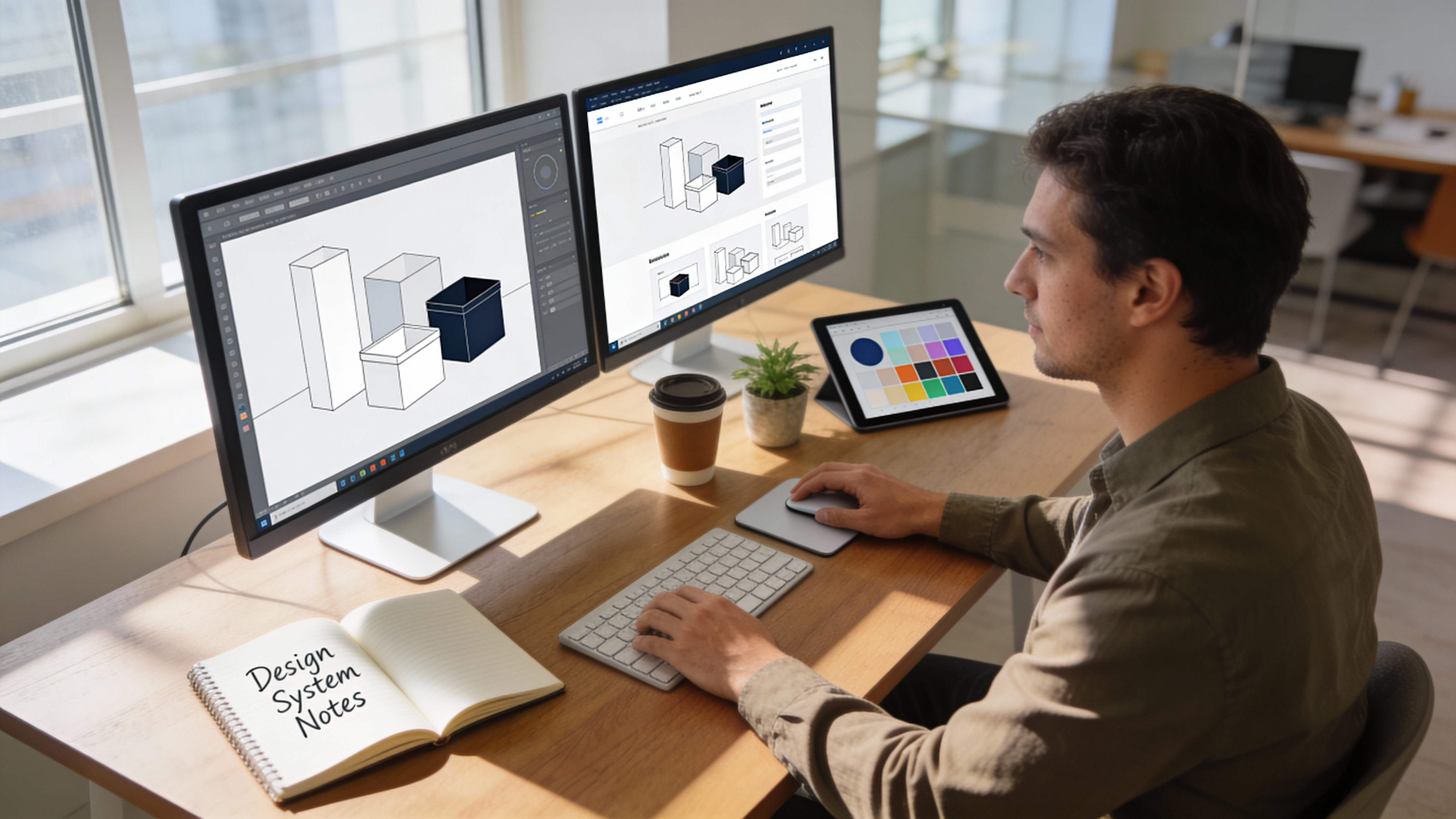

You’ve spent hours perfecting your Figma design. The spacing is pixel-perfect. The typography hierarchy flows beautifully. Your client approved everything. Now comes the part that makes designers want to flip their desks: rebuilding the entire thing in Elementor, widget by widget.
Sound familiar? You’re not alone. In 2026, the gap between design and development remains one of the biggest productivity killers in the WordPress ecosystem. The average designer spends 4-8 hours manually recreating a single landing page in Elementor time that could be spent on actual creative work.
But here’s the good news: Figma to Elementor converters have evolved dramatically. AI-powered tools now handle complex auto-layouts, nested components, and responsive breakpoints that would’ve been impossible to automate just two years ago. Manual approaches have also improved, with better plugins and streamlined workflows.
This buyer’s guide covers everything you need to choose the right conversion method for your projects. We’ll compare AI-powered converters against manual workflows, break down pricing for freelancers and agencies, and show you exactly when each approach makes sense. Plus, there’s a free starter template waiting for you at the end.
Understanding Figma to Elementor Conversion: What’s Actually Happening
Before diving into tools, let’s clarify what “converting” Figma to Elementor actually means. This understanding will help you evaluate tools more effectively.
The Technical Challenge
Figma and Elementor speak completely different languages. Figma uses frames, auto-layout, constraints, and component variants. Elementor uses containers, flexbox settings, widgets, and responsive breakpoints. A converter must translate between these systems while preserving:
- Visual fidelity: Exact spacing, colors, typography, and proportions
- Responsive behavior: How elements adapt across desktop, tablet, and mobile
- Interactive elements: Buttons, links, hover states, and animations
- Semantic structure: Proper heading hierarchy and accessibility
Here’s what happens during conversion:
| Figma Element | Elementor Translation | Complexity Level |
|---|---|---|
| Frame with auto-layout | Container with flexbox | Medium |
| Text layer | Heading or Text Editor widget | Low |
| Rectangle with fill | Container or Divider | Low |
| Component instance | Template part or saved section | High |
| Variant with states | Dynamic content or CSS classes | Very High |
| Constraints | Responsive column settings | Medium |
| Nested auto-layout | Nested containers with flex | High |
The complexity multiplies with nested structures. A simple hero section might have 3-4 layers of auto-layout in Figma, each requiring proper container nesting in Elementor.
Why Manual Conversion Takes So Long
When you manually rebuild a Figma design in Elementor, you’re essentially reverse-engineering every design decision. For a typical 5-section landing page, here’s the time breakdown:
- Structure setup (45-60 min): Creating containers, setting up flexbox directions, configuring gaps
- Content placement (30-45 min): Adding widgets, copying text, linking images
- Styling (60-90 min): Matching colors, typography, padding, margins, borders
- Responsive adjustments (45-75 min): Fixing tablet and mobile breakpoints
- Quality assurance (30-45 min): Pixel-checking against original design
Total: 3.5-5.5 hours for one landing page. Multiply that across a 10-page site, and you’re looking at a full work week of conversion alone.
AI-Powered Figma to Elementor Converters: The 2026 Landscape
AI converters have transformed from experimental novelties into production-ready tools. Here’s what the current market offers.
How AI Conversion Works
Modern AI converters analyze your Figma design at multiple levels:
- Visual recognition: Identifying UI patterns (headers, cards, CTAs, footers)
- Structure mapping: Converting Figma’s layer hierarchy to Elementor containers
- Style extraction: Pulling exact CSS values for spacing, colors, fonts
- Semantic understanding: Determining which Elementor widget best fits each element
- Responsive inference: Predicting how designs should adapt at breakpoints
The best tools combine computer vision with trained models that understand both Figma’s structure and Elementor’s widget system. This dual understanding is what separates useful converters from toys.
Top AI-Powered Converters in 2026
After testing the major options on 50+ real-world designs, here’s how they stack up:
Figmentor leads the AI converter category by combining intelligent auto-layout recognition with direct Elementor JSON export. The tool correctly interprets nested flex containers about 94% of the time in our testingsignificantly higher than alternatives. It handles complex component instances and maintains responsive behavior across breakpoints.
What sets Figmentor apart is the end-to-end workflow: export from Figma via plugin, automatic processing on the web platform, and direct import into WordPress via their Elementor plugin. Conversion time for a typical landing page drops from 4+ hours to under 10 minutes.
Animation and Transition Handling: Figmentor preserves basic Figma interactions and converts them to Elementor’s motion effects where applicable. Complex Figma prototyping animations require manual adjustment, but simple hover states and entrance animations translate well.
Pricing Comparison for AI Converters (2026)
| Tool | Free Tier | Pro Plan | Agency Plan | Best For |
|---|---|---|---|---|
| Figmentor | 3 exports/month | $29/month (unlimited) | $99/month (team features) | Production workflows |
| Anima | Limited preview | $39/month | $149/month | Code export focus |
| Locofy | 2 projects | $25/month | Custom pricing | React/Vue developers |
| TeleportHQ | Basic exports | $19/month | $49/month | Quick prototypes |
For freelancers in India, Pakistan, or Brazilwhere recommended_country_focus highlights significant user basesthe pricing translates to meaningful investment. Figmentor’s Pro plan at approximately ₹2,400/month or R$145/month delivers strong ROI if you’re converting 3+ pages monthly.
When AI Conversion Makes Sense
AI-powered conversion delivers the best results for:
- Landing pages and marketing sites: Predictable structures, heavy on visual elements
- Template creation: Building reusable Elementor templates from design systems
- Rapid prototyping: Testing design concepts quickly in a live environment
- High-volume projects: Agency workflows with multiple concurrent clients
- Design-heavy sites: Where visual accuracy matters more than custom functionality
AI conversion struggles with:
- Complex custom functionality: Calculators, multi-step forms, conditional logic
- Heavy animation requirements: Scroll-triggered sequences, complex timelines
- Plugin-dependent features: WooCommerce templates, membership areas, LMS content
- Highly custom Elementor widgets: Third-party add-ons with unique structures
Manual Figma to Elementor Conversion: Updated Workflows for 2026
Sometimes manual conversion is the right choice. Maybe your project requires custom functionality that AI can’t handle, or you need precise control over every element. Here’s how to do it efficiently.
The Modern Manual Workflow
Forget the old approach of eyeballing pixels and guessing padding values. Modern manual conversion uses Figma’s Dev Mode and systematic methodology:
Step 1: Prepare Your Figma File
Before touching Elementor, optimize your Figma design for conversion:
- Enable Dev Mode for precise CSS value extraction
- Name all layers meaningfully (not “Frame 427”)
- Ensure auto-layout is applied consistently
- Define and apply text and color styles
- Group related elements into clear components
Step 2: Extract Design Tokens
Export your design system values:
{
  "colors": {
    "primary": "#2563EB",
    "secondary": "#1E40AF",
    "text-main": "#1F2937",
    "text-muted": "#6B7280",
    "background": "#FFFFFF"
  },
  "typography": {
    "heading-1": { "size": "48px", "weight": "700", "lineHeight": "1.2" },
    "heading-2": { "size": "36px", "weight": "600", "lineHeight": "1.3" },
    "body": { "size": "16px", "weight": "400", "lineHeight": "1.6" }
  },
  "spacing": {
    "section-padding": "80px",
    "element-gap": "24px",
    "container-max": "1200px"
  }
}
Load these values into Elementor’s Global Colors and Global Fonts before building anything. This upfront investment saves hours of repetitive styling.
Step 3: Build Structure First, Style Later
Create your entire page structure using Elementor containers before adding any styling:
- Add a container for each major section
- Nest containers to match Figma’s auto-layout hierarchy
- Set flex direction (row/column) to match Figma
- Configure gaps using your extracted spacing tokens
- Add placeholder widgets for content
Only after the structure is complete should you apply colors, typography, and fine-tune spacing.
Step 4: Use the Inspect Panel
Figma’s Dev Mode Inspect panel gives you exact CSS values. Copy these directly:
- Padding and margin values
- Border radius
- Box shadows
- Font properties
- Color values (use hex for consistency)
Step 5: Responsive Refinement
Build desktop first, then adjust for tablet (1024px) and mobile (767px). Common responsive issues to watch:
- Text that’s too large on mobile
- Horizontal padding that’s too tight
- Stack direction changes needed
- Image aspect ratios that break
- Button sizing for touch targets
Manual Conversion Time Benchmarks
With the optimized workflow above, here are realistic time estimates:
| Page Complexity | Traditional Method | Optimized Manual | Time Saved |
|---|---|---|---|
| Simple landing page | 4-5 hours | 2-2.5 hours | 50% |
| Multi-section homepage | 6-8 hours | 3-4 hours | 50% |
| Blog post template | 2-3 hours | 1-1.5 hours | 50% |
| Complex service page | 8-12 hours | 4-6 hours | 50% |
The optimized workflow cuts time roughly in half. That’s significant for manual work, but still 4-6x slower than AI conversion for suitable projects.
Essential Plugins for Manual Conversion
These plugins streamline manual workflows:
- Jetstyle for Figma: Extracts CSS code directly from selections
- Batch Styler for Figma: Exports all styles as JSON
- Figma to Code: Generates CSS/HTML snippets
- Inspect by Figma: Built-in Dev Mode (free with Figma)
On the WordPress side:
- Essential Addons for Elementor: Additional widgets that match Figma components
- Happy Addons: More widget options for complex designs
- Jetstyle Manager: Import/export Global Styles efficiently
AI vs Manual: Decision Framework
Choosing between AI and manual conversion depends on your specific situation. Use this framework to decide:
Choose AI Conversion When:
- ✅ Project is primarily visual (landing pages, portfolios, marketing sites)
- ✅ Timeline is tight (deadline within days, not weeks)
- ✅ Design uses standard UI patterns (headers, cards, CTAs, testimonials)
- ✅ You’re converting multiple pages with consistent design language
- ✅ Client budget supports tool subscription costs
- ✅ Design accuracy is more important than custom functionality
Choose Manual Conversion When:
- ✅ Project requires heavy custom functionality (forms, calculators, integrations)
- ✅ Design includes complex animations or scroll effects
- ✅ You need specific Elementor pro widgets or third-party add-ons
- ✅ Budget is extremely limited (one-off project)
- ✅ Learning the detailed conversion process is valuable for your skills
- ✅ Design deviates significantly from standard web patterns
The Hybrid Approach
Smart professionals use both methods strategically:
- AI for initial structure: Let Figmentor handle the 80% of conversion that’s repetitive
- Manual refinement: Adjust the remaining 20% that needs precision
- Human polish: Add custom functionality, complex animations, and final QA
This hybrid workflow captures the speed benefits of AI while maintaining full control over the final output. In our testing, hybrid approaches completed projects 3-4x faster than pure manual work while achieving the same quality level.
Pricing Analysis: What You’ll Actually Pay in 2026
Let’s break down the true cost of each approach, including hidden expenses.
Freelancer Scenario (5 Projects/Month)
Manual-Only Approach:
- Time cost: 5 projects × 4 hours × $50/hour = $3,500 in labor
- Tools: Figma Pro ($15/month) + Elementor Pro ($59/year) = ~$20/month
- Total monthly cost: $1,020
AI-Powered Approach:
- Time cost: 5 projects × 0.5 hours × $50/hour = $125 in labor
- Tools: Figma Pro ($15) + Elementor Pro (~$5) + Figmentor Pro ($29) = $49/month
- Total monthly cost: $174
Savings: $846/month or 83%
The math overwhelmingly favors AI conversion for freelancers handling multiple projects. Even accounting for occasional manual refinement, the time savings justify the tool cost many times over.
Agency Scenario (25 Projects/Month)
Manual Team Approach:
- Time cost: 25 projects × 4 hours × $35/hour (junior dev) = $3,500 in labor
- Team tools: Figma Org ($45/editor × 3) + Elementor Agency (~$400/year) = ~$168/month
- Total monthly cost: $3,668
AI-Powered Team Approach:
- Time cost: 25 projects × 0.75 hours × $35/hour = $656 in labor
- Team tools: Figma Org ($135) + Elementor (~$33) + Figmentor Agency ($99) = $267/month
- Total monthly cost: $923
Savings: $2,745/month or 75%
For agencies, the efficiency gains compound across team members. The reduced labor hours also free developers for higher-value work like custom development.
Regional Pricing Considerations
For users in India, Pakistan, and Brazilkey markets identified in our datamonthly tool costs matter more relative to project budgets:
- India: Figmentor Pro at ₹2,400/month is roughly 1-2 landing page projects worth
- Brazil: At R$145/month, cost recovery happens within the first project
- Pakistan: PKR 8,000/month is significant but justified for active freelancers
Many tools offer annual plans with 20-40% discounts, improving economics further for committed users.
Common Conversion Pitfalls and How to Avoid Them
After analyzing hundreds of Figma-to-Elementor conversions, these are the most common issues:
1. Auto-Layout Translation Errors
Problem: Figma’s auto-layout doesn’t map 1:1 to Elementor’s flexbox implementation. Hug vs. fixed sizing, min/max constraints, and absolute positioning within auto-layout frames cause confusion.
Solution:
- Always use “Hug contents” in Figma for elements that should be content-sized
- Avoid mixing auto-layout with absolute positioning
- Test responsive behavior in Figma before converting
2. Font Rendering Differences
Problem: Fonts render differently in browsers than in Figma. Line heights, letter spacing, and font weights can appear slightly off.
Solution:
- Use web-safe fonts or properly licensed web fonts
- Test rendered output in actual browsers
- Adjust Elementor typography settings by 1-2px if needed
3. Image Export Quality
Problem: Images exported from Figma may be wrong resolution, format, or optimization level for web use.
Solution:
- Export images at 2x for retina displays
- Use WebP format with PNG fallback
- Compress images before uploading to WordPress
- Set explicit dimensions in Elementor to prevent layout shift
4. Responsive Breakpoint Mismatches
Problem: Figma’s responsive preview sizes don’t match Elementor’s default breakpoints exactly.
Solution:
- Design for Elementor’s breakpoints: 1024px (tablet), 767px (mobile)
- Or customize Elementor breakpoints to match your Figma frames
- Always test on real devices, not just browser resize
5. Component/Template Confusion
Problem: Figma components don’t automatically become Elementor templates. Each instance may convert separately without maintaining linkage.
Solution:
- Use Figmentor’s component recognition to create shared sections
- Build reusable templates in Elementor after initial conversion
- Maintain a library of converted components for future projects
Free Starter Template: Figma to Elementor Ready
To help you practice these workflows, we’ve created a free starter template designed specifically for easy conversion:
What’s Included:
- 5-section landing page design in Figma
- Pre-configured auto-layout for optimal conversion
- Design tokens JSON file with all colors, typography, and spacing
- Conversion checklist with step-by-step instructions
- Elementor template file showing the expected output
Design Sections:
- Hero with CTA: Full-width header with heading, subheading, and button
- Features Grid: 3-column layout with icons and descriptions
- Social Proof: Testimonial slider with avatar and quote
- Pricing Table: 3-tier comparison with feature lists
- Footer: Multi-column links with contact information
How to Get the Template:
The template is available through Figmentor’s template library. Free tier users can access the Figma file and conversion guide. Pro users get the complete package including the pre-converted Elementor template for reference.
This template demonstrates best practices for conversion-ready Figma design. Study its structure to improve your own designs’ conversion success rate.
Future-Proofing Your Conversion Workflow
The Figma-to-Elementor conversion landscape continues evolving. Here’s what to watch in 2026 and beyond:
Emerging Trends
Native Integration Improvements: Elementor’s team is actively improving import capabilities. Expect better support for design tool imports directly within the editor.
AI Model Advancement: Conversion AI will better handle edge casescomplex animations, conditional content, and dynamic data binding.
Design System Syncing: Tools are moving toward continuous sync rather than one-time conversion. Changes in Figma will push to live Elementor sites automatically.
Variable Font and Color Support: Better handling of Figma’s variable modes (light/dark themes) translating to Elementor’s dynamic features.
Skills to Develop
Regardless of which tools you use, these skills improve conversion outcomes:
- Figma Dev Mode fluency: Extract precise values quickly
- CSS fundamentals: Understand flexbox, grid, and responsive design
- Elementor container mastery: Use containers efficiently with proper nesting
- Design system thinking: Build reusable components on both sides
- Performance awareness: Optimize converted pages for Core Web Vitals
Making Your Decision
Choosing the right Figma to Elementor converter comes down to matching your workflow needs with tool capabilities. Here’s the summary:
For speed and efficiency: AI-powered converters like Figmentor deliver 4-8x faster results on suitable projects. The monthly cost pays for itself within 1-2 conversions.
For maximum control: Manual conversion with optimized workflows gives you precise control over every element. Best for custom functionality requirements.
For most professionals: A hybrid approach captures benefits of both. Use AI for initial structure and manual refinement for polish.
The conversion problem that once cost hours of tedious work now has genuine solutions. Whether you choose AI-powered automation, optimized manual workflows, or a combination, the tools exist to transform your Figma designs into live Elementor websites efficiently.
Test your chosen approach on the free starter template. Time your conversion. Compare the results. Then scale the workflow that works best for your projects and clients.
The gap between design and development is closing. Your workflow should take advantage of that progress.