
How to Convert Figma to Elementor in 2026: The Modern Step‑by‑Step Guide
Last updated: January 2026
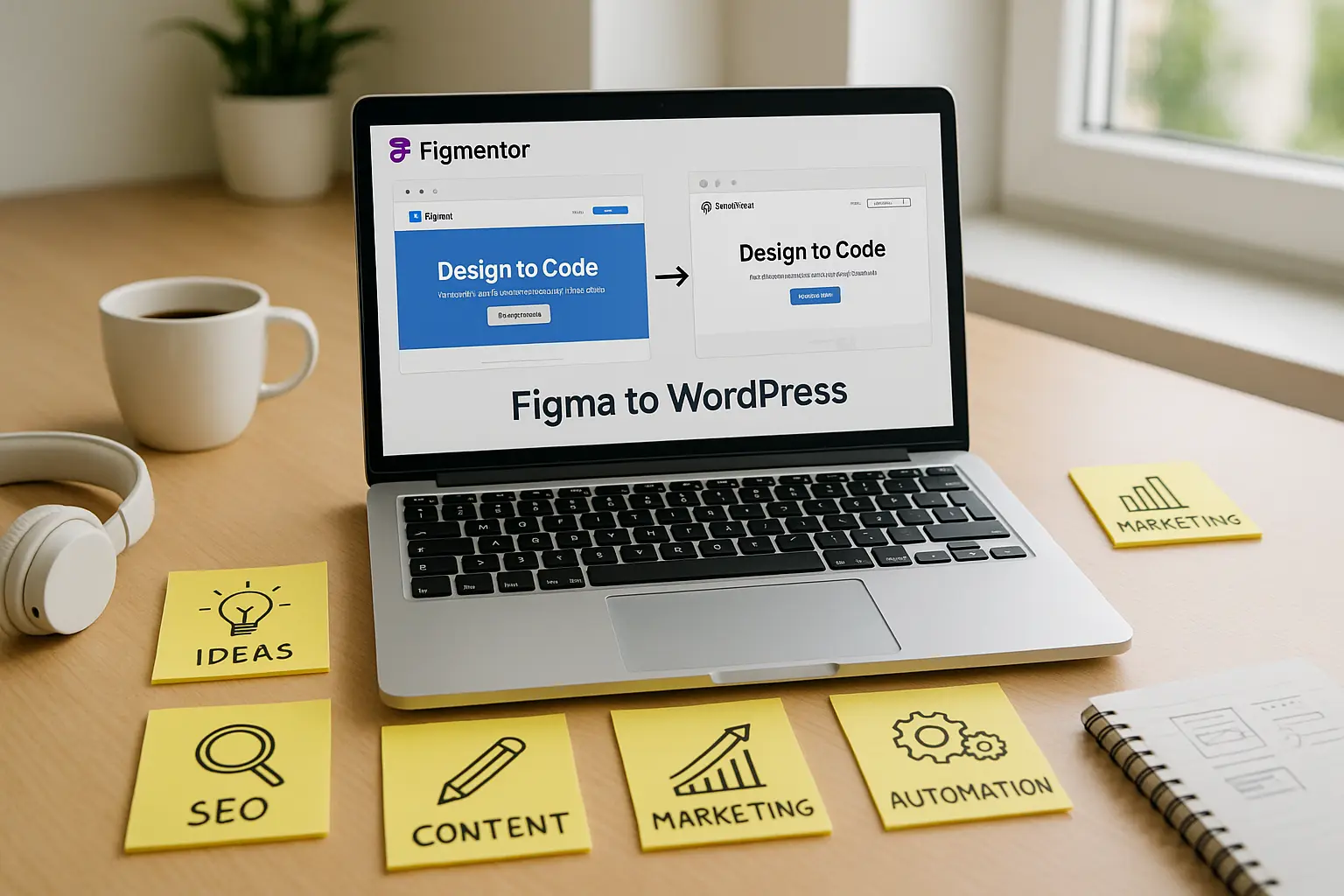
Designing in Figma and building in Elementor has become the standard workflow for modern WordPress creators. In 2026, this workflow is faster, smarter, and more automated than ever , especially with the rise of AI‑powered tools.
This guide will walk you through how to convert Figma designs to Elementor in 2026, covering manual methods, automated workflows, and what’s coming next with Figmentor 4.0 and Figmentor Studio.
Why Figma → Elementor Is the Go‑To Workflow in 2026
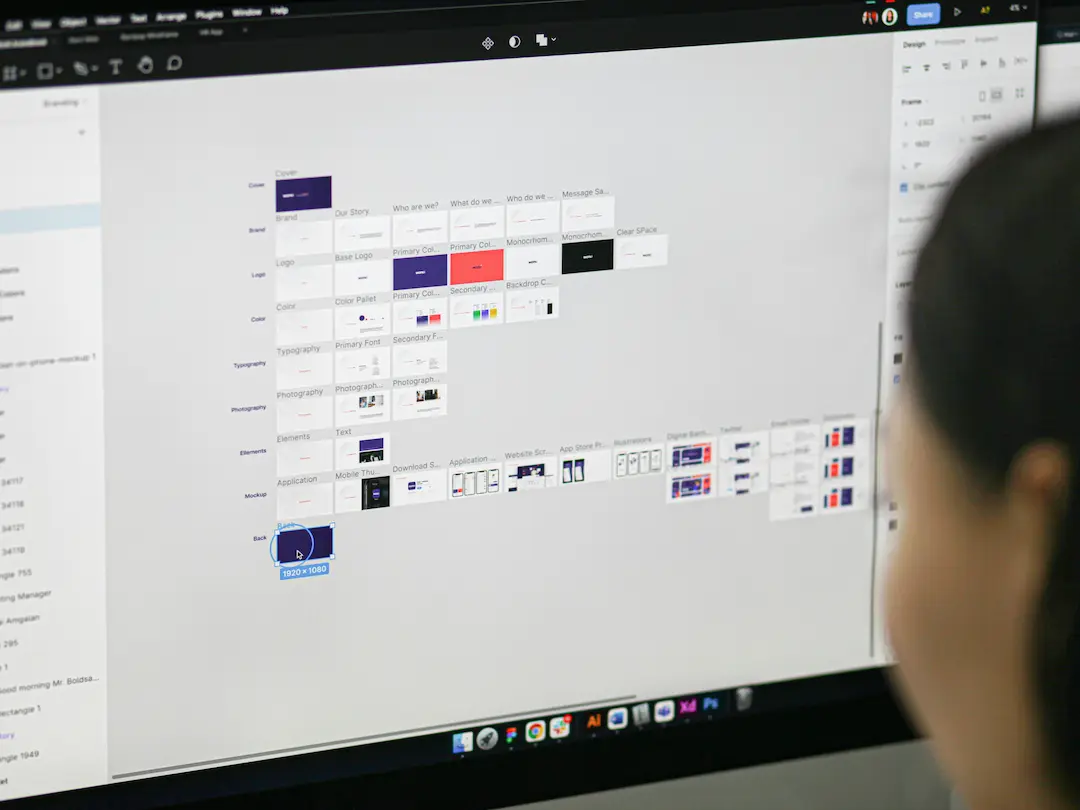
Figma remains the preferred design tool for UI/UX designers thanks to real‑time collaboration, components, and design systems. Elementor, on the other hand, powers millions of WordPress websites with its visual, no‑code editor.
The challenge has always been the gap between design and development:
- Rebuilding layouts manually takes time
- Design inconsistencies appear during development
- Responsive behavior often breaks
In 2026, designers expect pixel‑accurate, fast, and scalable conversions , not manual rebuilding.
The Main Ways to Convert Figma to Elementor
1. Manual Conversion (Traditional Method)
This approach involves recreating the Figma design inside Elementor by hand.
Steps:
- Design layouts in Figma
- Export images and assets
- Rebuild sections, columns, and widgets in Elementor
- Adjust spacing, typography, and responsiveness manually
Pros:
- Full control over layout
- No dependency on tools
Cons:
- Very time‑consuming
- Error‑prone
- Not scalable for agencies
This method is still used, but it’s no longer efficient for modern workflows.
2. Semi‑Automated Tools
Some tools attempt to export Figma designs into HTML or basic layouts that can be imported into WordPress.
Limitations:
- Limited Elementor widget support
- Broken responsiveness
- Requires heavy cleanup
These tools can help, but they often fall short when dealing with real‑world designs.
3. Automated Conversion with Figmentor (Recommended)
In 2026, automated conversion is the preferred approach , and this is where Figmentor stands out.
Figmentor allows designers to convert Figma designs directly into Elementor‑ready structures, preserving:
- Layout hierarchy
- Spacing and alignment
- Typography
- Responsive behavior
Instead of rebuilding designs, you focus on refinement and creativity.
Step‑by‑Step: Convert Figma to Elementor Using Figmentor
Step 1: Prepare Your Figma Design
- Use auto‑layout
- Name layers and components properly
- Follow a clean design structure
Good structure = better conversion results.
Step 2: Connect Figmentor
- Install the Figmentor plugin
- Connect your Figma file
- Select the frames or pages you want to convert
Step 3: Generate Elementor Layouts
Figmentor converts your design into:
- Elementor sections and containers
- Native widgets
- Editable typography and spacing
No static HTML. Everything remains fully editable in Elementor.
Step 4: Fine‑Tune in Elementor
- Adjust responsiveness
- Add interactions or animations
- Connect dynamic content if needed
This final step usually takes minutes instead of hours.
What’s New in 2026: Figmentor 4.0
Figmentor 4.0 is the biggest evolution of the platform so far.
It introduces:
- Full widget coverage: Basic, Pro, Theme Builder, and WooCommerce widgets
- Improved accuracy for complex layouts
- AI‑enhanced conversion to optimize structure and responsiveness
With 4.0, the gap between Figma and Elementor is nearly eliminated.
Introducing Figmentor Studio (Coming Soon)
In 2026, conversion is no longer just about moving designs , it’s about creating entire websites faster.
Figmentor Studio expands the workflow beyond a plugin:
- Generate templates and full websites
- Edit designs in Figma and Elementor seamlessly
- Use AI to speed up layout creation and structure
Whether you start from:
- Figma
- WordPress
- Elementor
- Or Figmentor Studio itself
…the workflow stays connected and flexible.
This marks a shift from conversion tools to a design‑to‑website platform.
Manual vs Automated: Which Is Better in 2026?
| Method | Speed | Accuracy | Scalability |
|---|---|---|---|
| Manual rebuild | Slow | Medium | Low |
| Semi‑automated tools | Medium | Medium | Medium |
| Figmentor (AI‑powered) | Fast | High | High |
For freelancers, agencies, and product teams, automation is now the clear winner.
Common Mistakes to Avoid
- Designing without auto‑layout
- Using inconsistent typography styles
- Flattening layers too early
- Ignoring responsive breakpoints
Clean design equals clean conversion.
FAQs
Can you convert Figma directly to Elementor? Yes. Modern tools like Figmentor allow direct conversion while keeping layouts editable inside Elementor.
Is AI reliable for Figma to Elementor conversion? In 2026, AI‑assisted workflows significantly improve accuracy and speed when combined with proper design structure.
Is manual conversion still worth it? Only for very small projects. For anything scalable, automated workflows save time and reduce errors.
Final Thoughts
Converting Figma to Elementor in 2026 is no longer about rebuilding designs from scratch. With automation, AI, and connected workflows, designers can focus on creating better experiences , faster.
With upcoming releases like Figmentor 4.0 and Figmentor Studio, the future of design‑to‑website workflows is becoming seamless, flexible, and truly efficient.
If you’re building modern WordPress websites in 2026, this is the workflow to master.
Related Articles
- How to Build Elementor Templates Directly from Figma Designs
- Elementor Template Kits: How to Build Them Directly from Figma
- How to Create Pixel-Perfect WordPress Pages from Figma Files
- Figma to WordPress: The Ultimate Guide for Designers and Developers
- How to Convert Figma to Elementor in Under 5 Minutes Without Coding
- Ultimate Guide: Figma to Elementor for WordPress in 2025
- How to Use Advanced Figma Features to Speed Up Your Elementor Builds
- Real Use Case: From Figma to Elementor in 1 Hour
- How to Export Figma Designs Straight to WordPress in 2025
- Designing in Figma for Direct WordPress Export: A Pro Guide
- How to Use Figma Auto Layout for Better Elementor Responsive Pages
- Top 5 Figma Export Problems for WordPress and Elementor Fixes That Work in 2025
- How Much Time and Money You Save by Using Figmentor vs Manual Handoffs
- Elementor for Figma Designers: Why This Combo Saves 100+ Hours
- 7 Costly Mistakes When Converting Figma to WordPress and How to Avoid Them
- Ultimate Guide: Converting Figma Designs to Elementor Templates